HelpInsights
Insights: which ads and ideas are working, and what to brief next
Where to find it Insights, in the top bar
Short answer Insights opens with a written review of your ads: what's working, what's not, what to brief next and what to remember. Under it, live numbers show which ads sit well above or below the average ROAS, and how your concepts, products and formats compare. Every review is saved, so you can open any past week exactly as it was.
Where to find it
Click Insights in the top bar.
Live or a saved date
Version at the top picks what you see:
- Live: the newest written review, with live Meta numbers for the period you pick below it.
- Saved and a date: the review and every number on the page exactly as they were saved that day. They won't change.

The written review
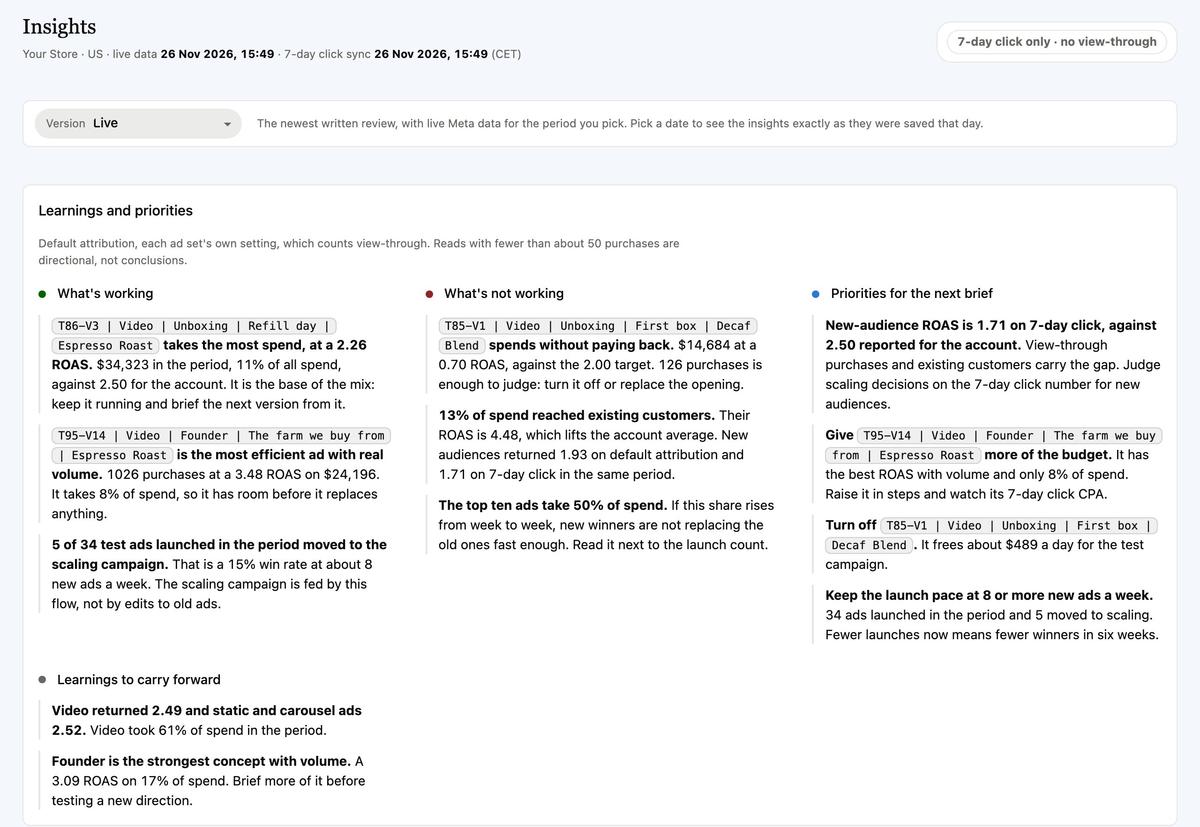
Learnings and priorities has four parts: What's working, What's not working, Priorities for the next brief and Learnings to carry forward. Ad names show as grey chips.
Claude writes it from the period's ad data: complete days only, default attribution, excluded campaigns left out. Before a review is saved, every number in it is checked against that data. If some still can't be matched after a second try, it's saved with the label Numbers not verified.
A review is written two ways:
- On a schedule. By default every Monday at 7:00 in your ad account's time zone, for the last 30 days, all ad sets. Change it in Settings, Advanced, under AI insights: Schedule (Weekly or Off), Weekday, Hour and Default period (Last 7, 14 or 30 days).
- When you click Generate insights in the Version bar. Pick the Period and Audience scope, and whether to Save as a new version. It usually takes under a minute. You can close the window: you'll be told on the page, in your browser and by email when it's ready.
There's one saved version per day. If today's exists, you're asked to Replace today's version; earlier versions never change. Each dashboard allows up to 5 of these in 24 hours.
This period, live
Under the review, Period (Last 7 days, Last 14 days, Last 30 days, This month (incl. today), Last month or Lifetime) and Audience set the numbers below. Audiences come from your ad set names, using the audience rules in Settings: All ad sets, one row per rule, and Other ad sets.
The sentence on the left gives that slice's ROAS, spend and number of ads. Every "vs average" below compares with this ROAS.
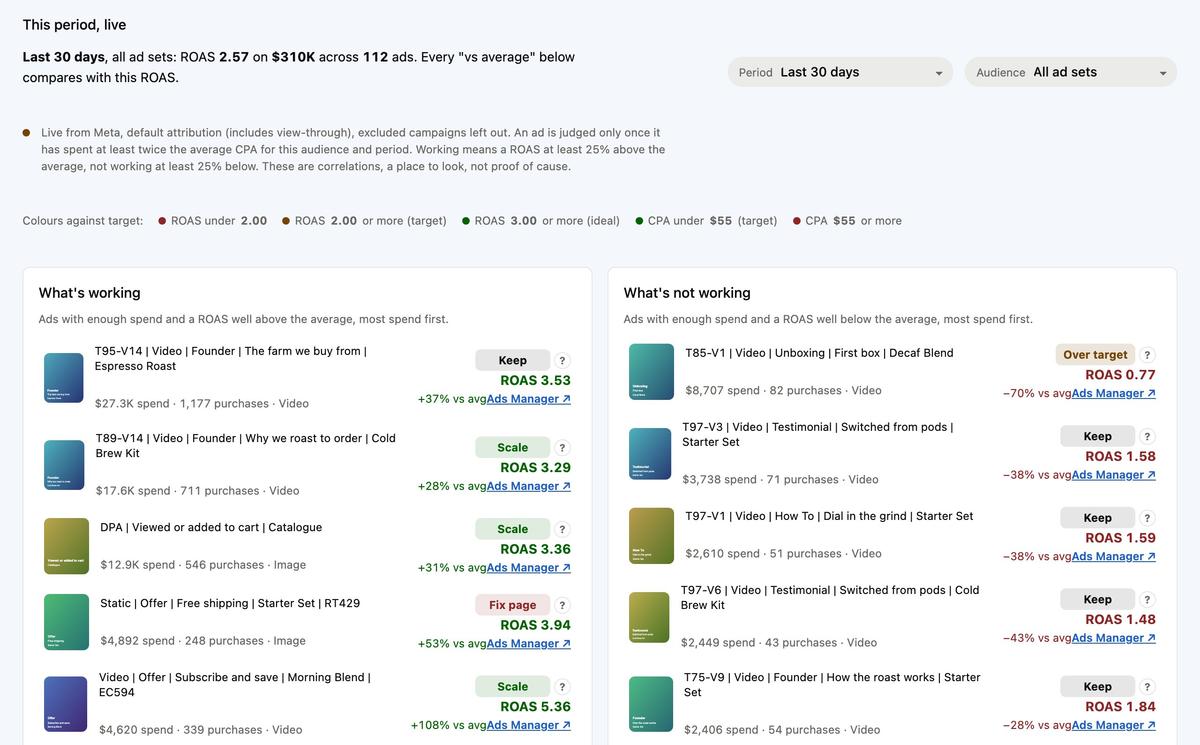
These numbers use Meta's default attribution, which includes view-through. So they're usually higher than the 7-day click numbers in Charts.
What's working and what's not
The rule, in the line under the selectors:
- An ad is judged only once it has spent at least twice the average CPA for this audience and period.
- What's working: its ROAS is at least 25% above the average.
- What's not working: its ROAS is at least 25% below the average.
Both lists put the most spend first. Each ad shows its spend, purchases and format, its ROAS, how far it is from the average, and its instruction from Needs action (Keep, Scale, Fix page...). Click an ad to open its detail panel, the ? to see why it got its instruction, or Ads Manager to open it in Meta.
Under What's not working, Spent a full CPA without a sale lists ads that have spent at least the average CPA with no purchase yet.
Colours against target shows how ROAS and CPA are coloured, using the targets you set in Settings.
These are correlations: a place to look, not proof of cause.
By concept, by product, by format
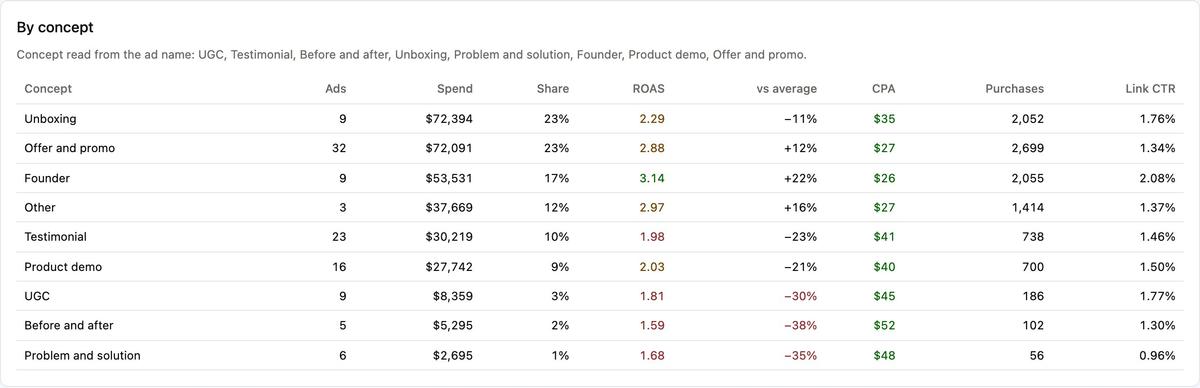
Three tables split the same numbers by idea. Concept and product are read from the ad name, using the concept and product rules in Settings. Format is video, image or carousel.
Each row shows the number of ads, spend, share of spend, ROAS, vs average, CPA, purchases and link CTR. vs average turns green at 25% or more above the average and red at 25% or more below.
A Monday routine
- Open Insights and read the review, starting with Priorities for the next brief.
- Check What's not working and Spent a full CPA without a sale. Turn off or replace those ads in Ads Manager.
- Look at By concept and By product: brief more of the ideas that sit well above the average.
- Switch Version to last week's date to see whether last week's priorities moved.
Good to know
- Generating a review is open to the Owner, Admins and Members. Client viewers and share links see the reviews read-only.
- Only the Owner and Admins can delete a saved version (Delete this version, shown on a saved date).
- The review treats any read with fewer than about 50 purchases as directional, and says so.
- How every number is counted: open How we measure in the app's top bar.