HelpAds
Needs action: the ads to deal with this week, most urgent first
Where to find it Ads, then Needs action (the first tile)
Short answer Needs action lists every ad that needs something from you, with one instruction per ad: Fix page, Fatigued, Over target, Turn off, Fatiguing or Scale. The most urgent sit at the top. Click the ? next to an instruction to see the rule and the numbers behind it, then Details for the ad's full picture.
Where to find it
Open Ads in the top bar. Needs action is the first tile, and the number on it is how many ads need something right now.
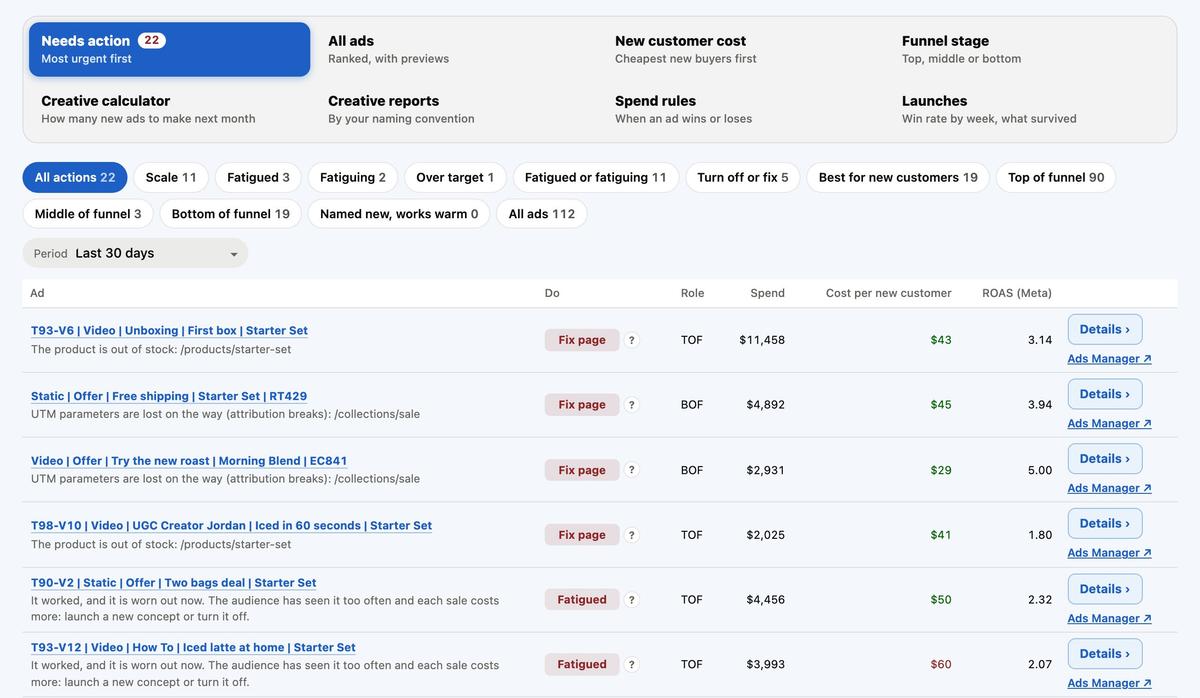
Each row shows:
- Ad: the ad's name, and one line on why it's on the list.
- Do: what to do with it. The ? next to it explains why.
- Role: where the ad works in the funnel: TOF (top, new people), MOF (middle) or BOF (bottom, people who already know you).
- Spend, Cost per new customer (green when it's at or under your target, red when it's over) and ROAS (Meta).
- Details opens the ad's panel, and Ads Manager opens the ad in Meta.
What each instruction means
The list is sorted in this order, then by spend. Every rule uses 7-day click, never view-through, and is checked against the targets you set in Settings.
| Instruction | What it means | The rule | What to do |
|---|---|---|---|
| Fix page | The page the ad sends people to is broken, out of stock or gone. | Budget insurance opens the pages of your active ads every hour and flags errors, timeouts, out-of-stock or missing products, redirect loops and lost UTM tags. | Fix the page or change the ad's link today. Every click until then is wasted. |
| Fatigued | It worked, and now it's worn out. | Three or more fatigue signals against the ad's own two weeks before, or a rising cost per sale together with a falling CTR or hook rate. Signals: CTR or hook rate down 20% or more, frequency 2.5 or more and rising, CPM up 25% or more, cost per sale up 30% or more. | Launch a new concept to replace it, or turn it off. |
| Over target | A new customer costs too much. | A new customer costs 50% or more over your target CPA, or 7-day click ROAS is a third or more under your ROAS target. It's flagged earlier (20% over target) when two or more of CTR, CPC, hook rate and frequency are also weak against your other ads. | Refresh the creative or move budget to ads that bring cheaper new customers. |
| Turn off | It's spending without bringing new customers. | It has spent two target CPAs and brought no new customer on 7-day click. | Turn it off in Ads Manager. |
| Fatiguing | Still within target, but starting to wear out. | Early fatigue signals (two, including CTR or hook rate, or frequency together with cost per sale) while the ad is still within target. | Brief the next version now, before it costs you. |
| Scale | New customers are cheap and the orders are big enough. | A new customer costs 25% or more under your target CPA, with 5 or more new customers, 7-day click ROAS at or above your ROAS target and no sign of wearing out. | Give it more budget, step by step. |
Ads with no instruction are Keep: no rule applies this week. They're not in this list, but you'll find them under All ads.
Why an ad got its instruction
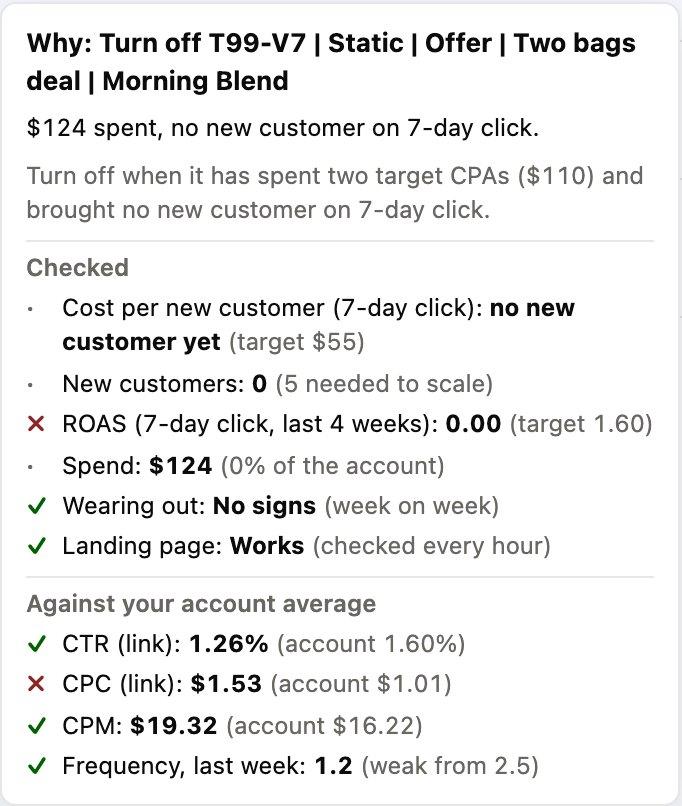
Click the ? next to any instruction. It shows the reason in one line, the rule, every number that was checked against your targets (✓ passes, ✗ fails) and the ad's CTR, CPC, CPM and frequency against your account average.
The saved views
The chips above the list filter it. The number on each chip is how many ads are in that view.

- All actions: every ad that needs something.
- Scale, Fatigued, Fatiguing, Over target, Turn off or fix: one instruction at a time.
- Fatigued or fatiguing: everything that's wearing out, at any stage.
- Best for new customers: ads where a new customer costs at least 25% under your target.
- Top of funnel, Middle of funnel, Bottom of funnel: ads by the role they play.
- Named new, works warm: ads set up for new customers that mostly reach people who already know you.
- All ads: the whole account.
Period changes the window the numbers cover (the last 30 days by default).
The ad's detail panel
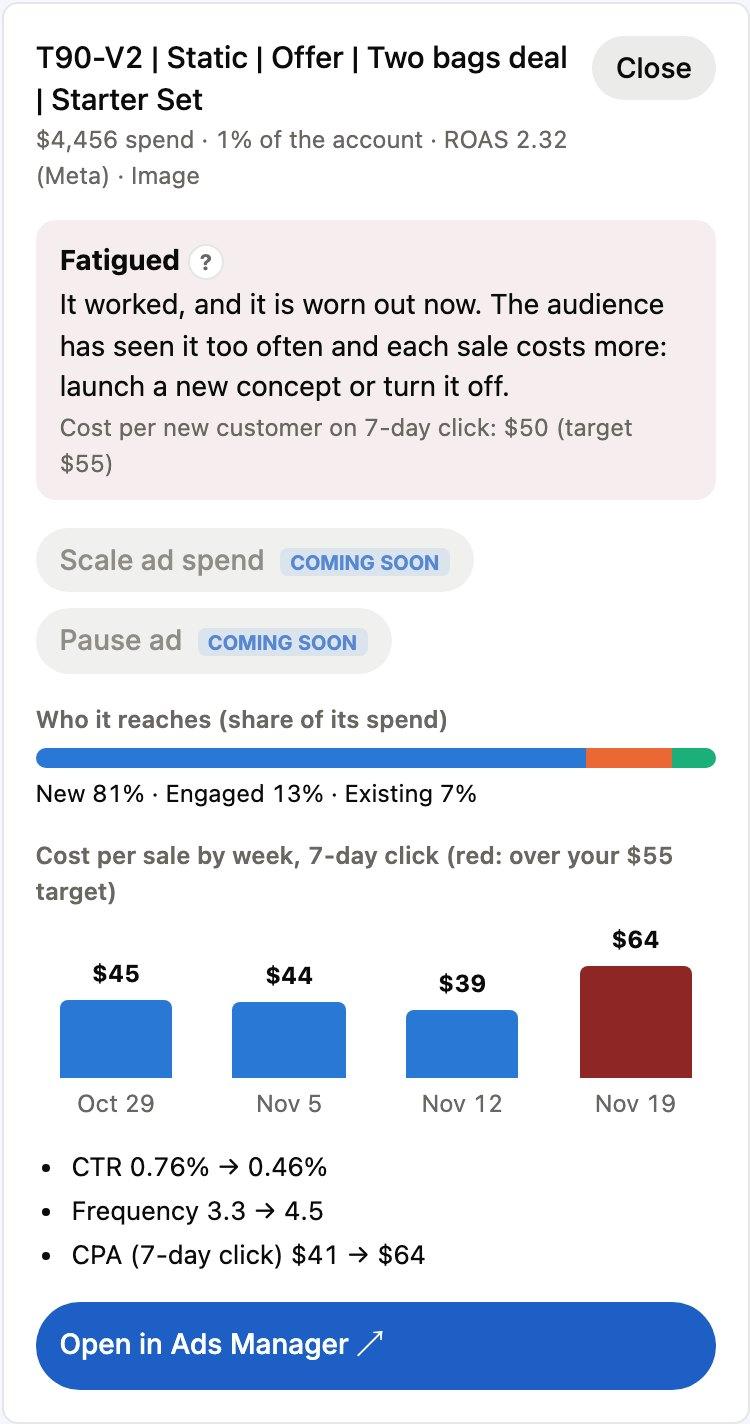
Click an ad's name or Details. The panel shows its instruction and why, who it reaches (new, engaged or existing customers, as a share of its spend), its cost per sale week by week (red when it's over your target) and what changed. Open in Ads Manager takes you straight to the ad.
A five-minute Monday routine
- Open Ads, then Needs action.
- Deal with every Fix page first. Those ads waste money with every click.
- Turn off the Turn off ads and replace the Fatigued ones.
- Move budget from Over target ads to Scale ads.
- Brief new versions of the Fatiguing ads, so they're ready before they wear out.
Good to know
- The instructions use your own targets. Change your target CPA and ROAS in Settings, under Targets, and the list follows.
- Vibe9.co doesn't change anything in your ad account. You make the change in Ads Manager.
- Client share links show Needs action too, without the Creative reports, Spend rules and Launches tiles.
- Very small ads aren't flagged as fatigued or over target: an ad needs at least 1% of the account's spend for fatigue and 2% for cost.
- How every number is counted: open How we measure in the app's top bar.