HelpGetting started
My Stores: add an ad account and switch between stores
Where to find it My Stores, in the top bar (agency workspaces)
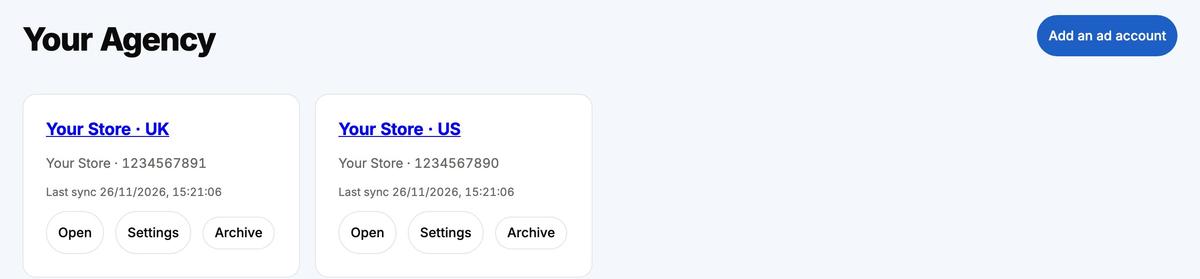
Short answer My Stores lists every store in your workspace, one card each. A store is one dashboard reading one Meta ad account. Click Add an ad account to add another, Open to see a store's report, Settings for its targets, and Archive when you stop working on it.
Where to find it
Click My Stores in the top bar. You'll see it in an agency workspace, the kind that runs several stores.
A store workspace runs one store, so it has no My Stores page: opening the workspace takes you straight to that store's dashboard. Before its first ad account is added, the top bar shows Get started instead.
The store cards
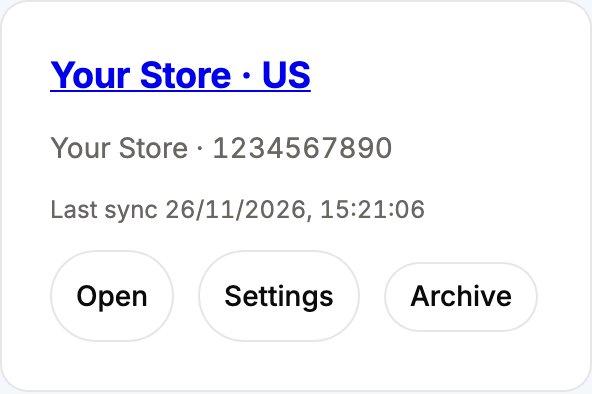
Each card shows:
- The store's name. Click it to open the store's report.
- The ad account: its name in Meta, then its ID.
- Last sync: when the numbers were last refreshed from Meta, or Not synced yet for a brand new store.
- Badges when something needs you: No audience segments (Meta can't split this account's spend into new, engaged and existing customers yet) or Paused billing.
- Open: the store's report, starting on Overview.
- Settings: the store's targets, alerts and connections. Owners, admins and members see it.
- Archive: owners and admins only. It takes effect straight away (see below).
Adding a store
Click Add an ad account. If Facebook isn't connected yet, the button takes you to Connections first. Then:
- Which Facebook connection? Only asked when you have more than one.
- Pick the ad account. You see every ad account that Facebook login can read, with its ID, currency, time zone, business and status. Accounts that already have a dashboard say Already a dashboard.
- Audience segments check. Vibe9.co checks whether Meta splits the account's spend into new, engaged and existing customers. If it doesn't, you get the path to turn it on in Ads Manager (Advertising settings, Audience segments). Until then, that spend shows as Unknown.
- Dashboard settings. Two targets are required: your ROAS target, 7-day click and your CPA target, what you can pay for a new customer. They decide which ads Vibe9.co tells you to scale, refresh or turn off. You can also name the dashboard and list campaign keywords to leave out. Everything can be changed later in Settings.
Click Create dashboard. Vibe9.co loads 90 days of history from Meta (both Meta's default attribution and 7-day click) plus your ads' creatives, and starts on it straight away. If billing isn't set up for the workspace yet, you go to Billing first.
Switching between stores
In an agency workspace, the top bar has a Store menu. Pick a store to open its dashboard, or All stores to come back to My Stores. The Overview, Ads, Charts and Insights links open the store you're in.
Archiving and restoring
Archive stops a store's syncing straight away, and it's no longer billed from the next renewal. There's no confirmation step, so check the card first.
Archived stores move to an Archived list at the bottom of My Stores, visible to owners and admins. Restore brings one back and syncs it again. Archived data is kept for 90 days, then deleted.
What to do with it
- Add each client store once, with its own targets.
- Use the Store menu at the top to move between them.
- Archive a store when the work ends, so it stops syncing and billing.
A store workspace that needs a second ad account
A store workspace runs one dashboard. If you try to add a second, Vibe9.co offers Switch to an agency workspace: no limit on dashboards, each billed at the same price per dashboard, prorated from that day. Only the workspace owner can switch. Everything you already have stays as it is.
Good to know
- One ad account can have only one active dashboard per workspace.
- A Facebook connection can feed many stores. See which stores use which login on Connections.
- Who sees which buttons: everyone gets Open; owners, admins and members get Settings and Add an ad account; only owners and admins get Archive.