HelpGetting started
Connect Shopify: what a new customer really costs, from your own orders
Where to find it Settings in the top bar, then the Connections tab, Shopify store
Short answer Open Settings, then the Connections tab. Under Shopify store, type your store's address and click Connect Shopify. Then open the Vibe9.co app in your Shopify admin and click Link store. Vibe9.co reads your orders (totals, dates and whether it was the customer's first order) and adds a Shopify next to Meta card to Overview: your Meta spend divided by the new customers your store really got.
Where to find it
Click Settings in the top bar, then the Connections tab. The Shopify store card sits under the Meta ad account card.
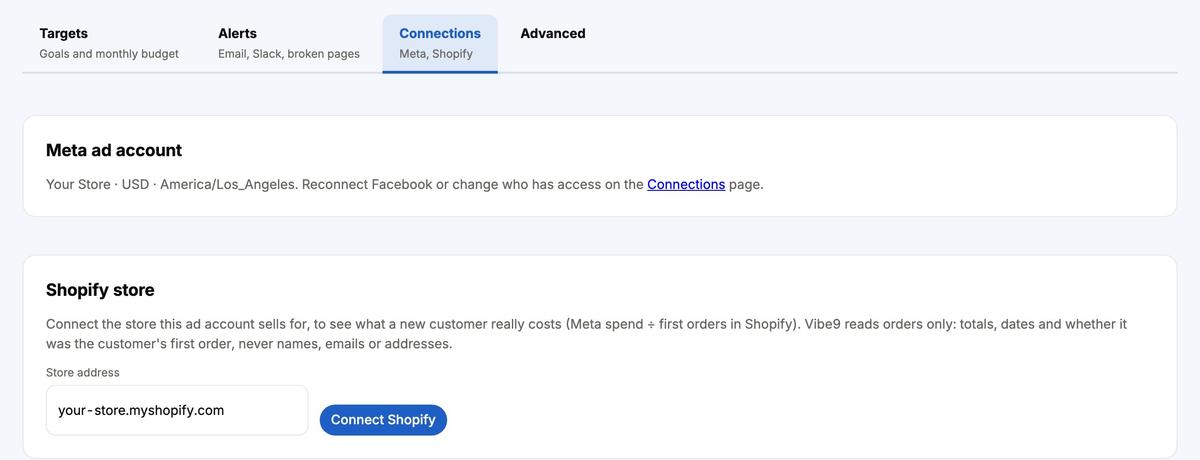
Each dashboard connects its own store: the one its Meta ad account sells for. Workspace owners and admins can connect or disconnect a store.
Connecting a store, step by step
- Under Store address, type the store's Shopify address, for example
your-store.myshopify.com, and click Connect Shopify. - The card now says One step left in Shopify. Open that store's Shopify admin and go to Apps, then the app listed as Vibe9. Install the Vibe9.co app first if it isn't there yet.
- In the app, click Link store. The Settings card shows the store as soon as it's linked, and the first order sync starts straight away.
The request waits 7 days for you to click Link store. One store can feed one dashboard: if it already feeds another dashboard, disconnect it there first.
What Vibe9.co reads
Orders only: each order's total, its date and whether it was that customer's first order. Never names, emails or addresses.
When it counts orders:
- Test orders and cancelled orders are left out.
- A new customer is an order that Shopify marks as the customer's first.
- Subscription renewals (repeat orders created by a subscription app) are counted separately, so you can leave them out.
- Days are your store's own calendar days.
Once the store is linked
The Shopify store card shows:
- Store: the store's name and address.
- Last sync: when the orders were last read.
- History: how far back the orders go, and whether they're still loading.
- Sync now: reads the orders straight away instead of waiting for the daily sync, then tells you how many orders it read and the totals for the days it covered.
- Disconnect store (owners and admins): unlinks the store and deletes its order numbers from Vibe9.co.
The orders sync once a day. Each sync first re-reads the last 7 days, because orders get edited, refunded and cancelled, then keeps loading older history until it reaches the store's first order.
Why only 60 days? Shopify gives apps the last 60 days of orders until it approves access to the full order history. The card says so when that's the case. Once access is approved, the older orders load on the next sync by themselves.
What it adds to your dashboard: Shopify next to Meta
Overview gets a Shopify next to Meta card for the period chosen at the top. It uses Meta spend for the same days, without excluded campaigns.
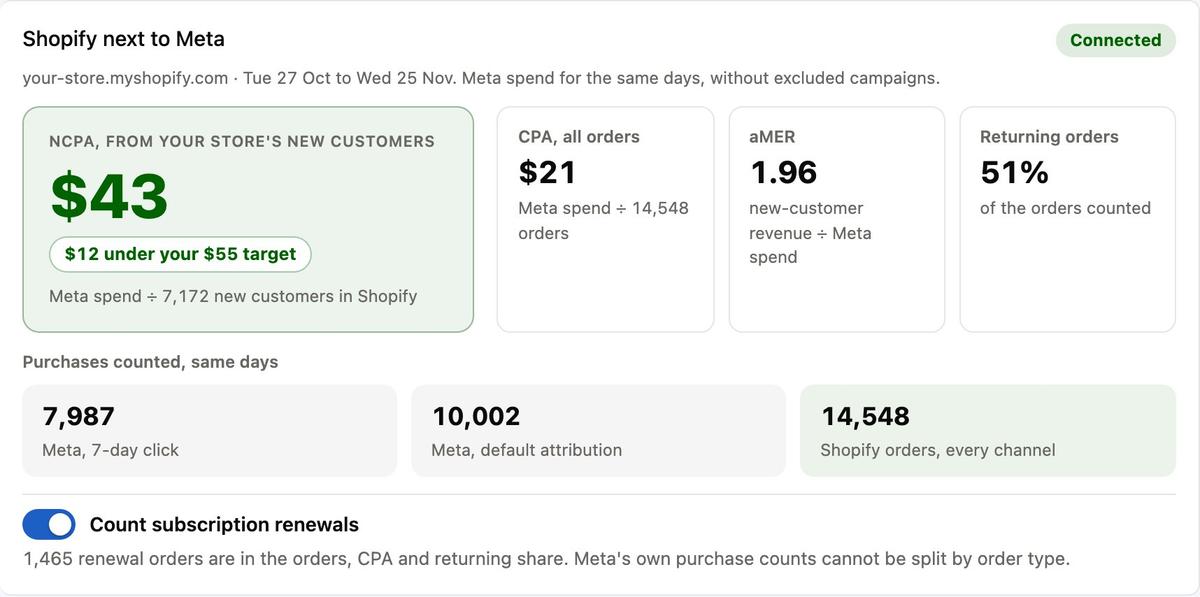
- nCPA, from your store's new customers: Meta spend divided by the new customers in Shopify, with how far it is under or over your target CPA.
- CPA, all orders: Meta spend divided by every order.
- aMER: new-customer revenue divided by Meta spend.
- Returning orders: the share of the orders counted that weren't a customer's first order.
- Purchases counted, same days: Meta's purchases on 7-day click, Meta's purchases on its default attribution, and your Shopify orders from every channel, side by side.
- Count subscription renewals: switch it off to leave renewal orders out of the orders, CPA and returning share. New customers and nCPA don't change.
The Weekly scorecard on Overview also shows the week's cost per new customer From Shopify orders.
What to do with it
- Connect the store on day one, so the history loads while you set up.
- Each week, compare nCPA with Meta's own cost per new customer.
- If the gap grows, check your tracking before you change budgets.
Good to know
- Shopify's orders come from every channel, not only Meta ads, while the spend is Meta's alone. Read nCPA next to Meta's own numbers, not instead of them.
- If the Vibe9.co app is removed in Shopify, the card says so. Install it again in Shopify to resume.
- If a sync fails, the card shows the error and the numbers already in Vibe9.co stay as they were.