HelpSettings
Targets and settings: tell Vibe9.co what good looks like for your store
Where to find it Settings in the top bar, then the Targets tab (naming rules under Advanced)
Short answer Each dashboard has its own Settings. The Targets tab holds the numbers every verdict is judged against (your CPA target, your ROAS target on 7-day click, two colour targets and an optional monthly budget), plus the dashboard's name, campaigns to leave out and the Winning ad rule. Advanced holds naming rules and the AI insights schedule. Changes apply to every number on the next load, without a re-sync.
Where to find it
Open the dashboard and click Settings in the top bar. It has four tabs: Targets, Alerts, Connections and Advanced.
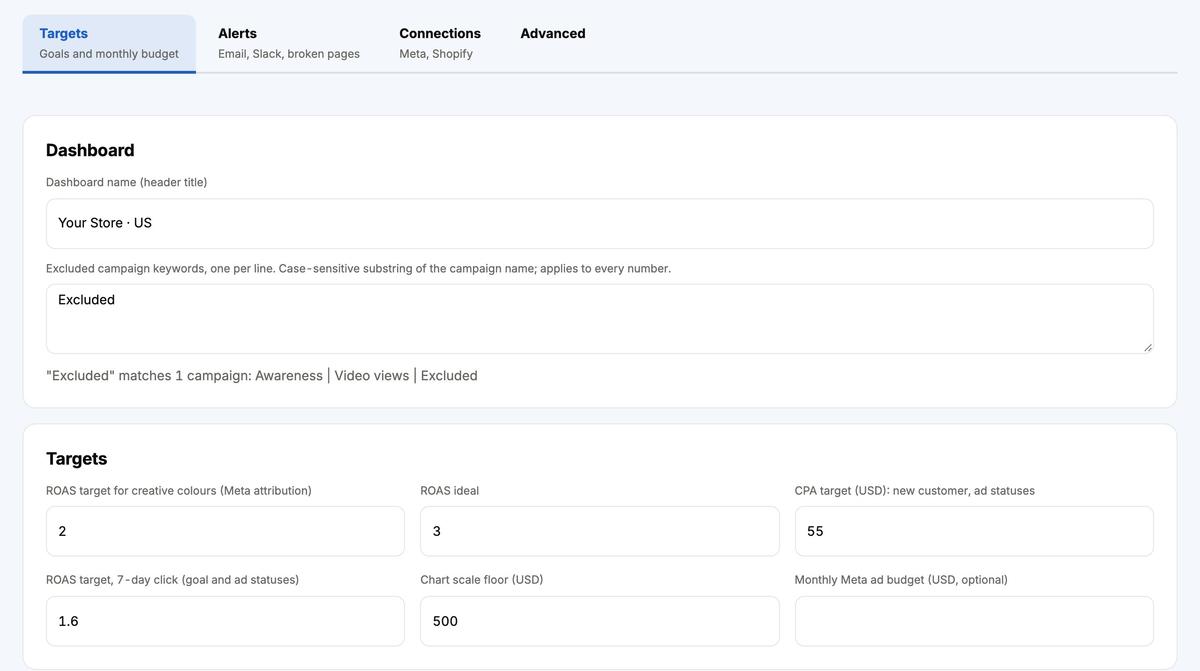
Owners, admins and members can change settings. Click Save settings; Reset undoes unsaved changes. If a value doesn't make sense, the page says what to fix.
Dashboard
- Dashboard name (header title): the name at the top of the dashboard and in the store menu.
- Excluded campaign keywords: one per line. Any campaign whose name contains the keyword (case-sensitive) is left out of every number. Under the box you see how many campaigns each keyword matches right now. Use it for awareness or video-view campaigns, for example.
Targets
| Setting | What it changes |
|---|---|
| CPA target | What you can pay for a new customer. The Ads instructions (Scale, Over target, Turn off and the rest) are judged against it, Overview shows how far under or over it you are, and the cost-per-new-customer alert uses it. |
| ROAS target, 7-day click | Your goal for new audiences. Overview shows it as the goal under ROAS from new audiences, and the Ads instructions use it too. |
| ROAS target for creative colours | On Meta's own attribution: under it shows red, at or above it amber. |
| ROAS ideal | At or above it shows green. It must be at least the ROAS target. |
| Chart scale floor | In the daily ROAS and cost charts, days a segment spent less than this don't set the scale, so one quiet day doesn't squash the rest. |
| Monthly Meta ad budget (optional) | Overview's month card compares the estimated month total (spend so far plus every active daily budget to the month's end) with it. |
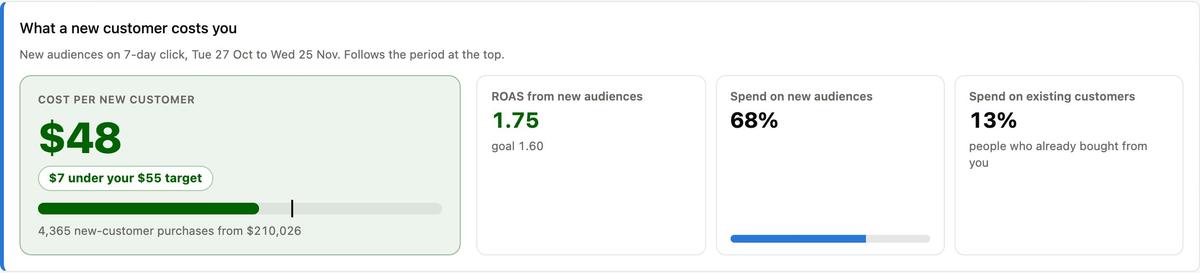
The ad reports show the colour targets in use. A cost per new customer is green under the CPA target and red at or over it.

A new dashboard needs the CPA target and the ROAS target on 7-day click. Unless you set them there, the colour ROAS target starts at the 7-day click target and the ROAS ideal at 3.
Winning ad
One rule decides which ads are winners in Creative reports, Spend rules, Launches and the Creative calculator: an ad that reached the Scaling spend with at least the Minimum purchases, at or under your CPA target plus the Over target allowed (%). Tested from is the spend at which an ad has had its chance.
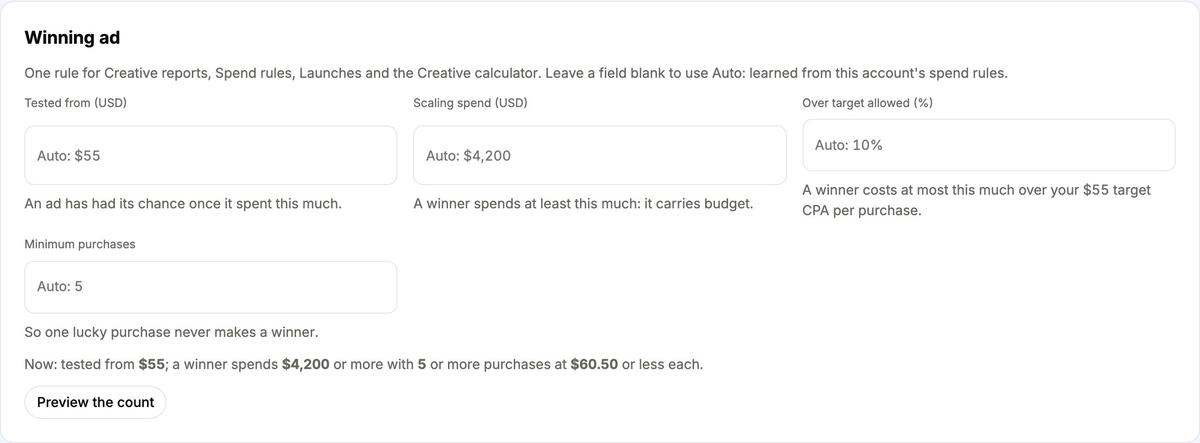
Leave a field blank for Auto: tested from where your Spend rules judge an ad (two CPA targets until the account has enough history), scaling spend from the Spend rules' learned level (ten CPA targets until then), 10% over target, 5 purchases. Preview the count shows how many tested creatives would win before you save. Back to Auto clears your values.
Advanced: naming rules and AI insights
Every rule here shows what it matches right now.
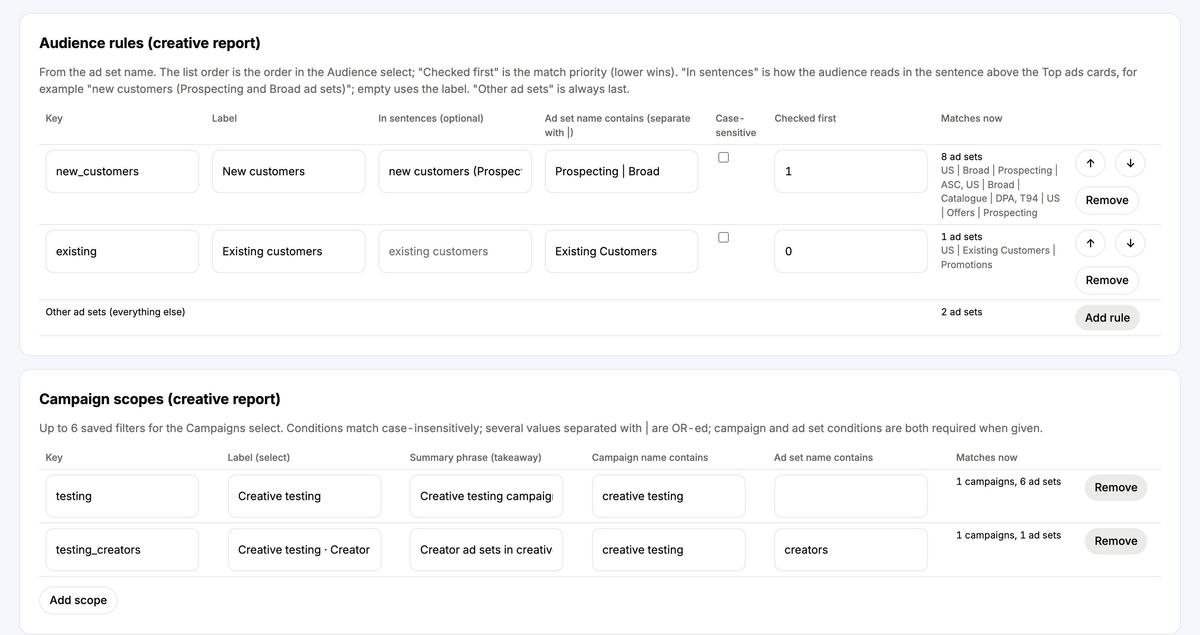
- Audience rules: sort ad sets into audiences by words in their name (separate several with
|), for the Audience menu in Ads. Checked first decides which rule wins when two match. Up to 8; the rest is Other ad sets. - Campaign scopes: up to 6 saved filters for the Campaigns menu in Ads, by campaign and ad set name, ignoring case.
- Concept rules and Product rules: group ads by concept and product in Insights, from the ad name. The first match wins; the rest go to Other or Other or unclear.
- AI insights: Weekly or Off, the weekday and hour (ad account time) and the default period. New dashboards start on Mondays at 7:00, over the last 30 days.

A setup routine
- On day one, set your CPA target from your margins and your ROAS target, 7-day click.
- Add the monthly budget if you plan one, and exclude campaigns that aren't there to bring customers.
- Check Advanced once your naming is settled.
- Update the targets when your prices or margins change.
Good to know
- Settings are per dashboard: each store has its own targets.
- Alerts and broken-page checks are on the Alerts tab. Meta and Shopify are on Connections.