HelpOverview
Budget and forecast: where this month's Meta spend will land
Where to find it Overview, the month's ad spend card (next to Shopify next to Meta)
Short answer The ad spend card on Overview estimates what you'll spend on Meta by the end of this month: what you've spent so far, plus every active daily budget for each day that's left. Set a monthly budget and it tells you whether you're heading over or under it.
Where to find it
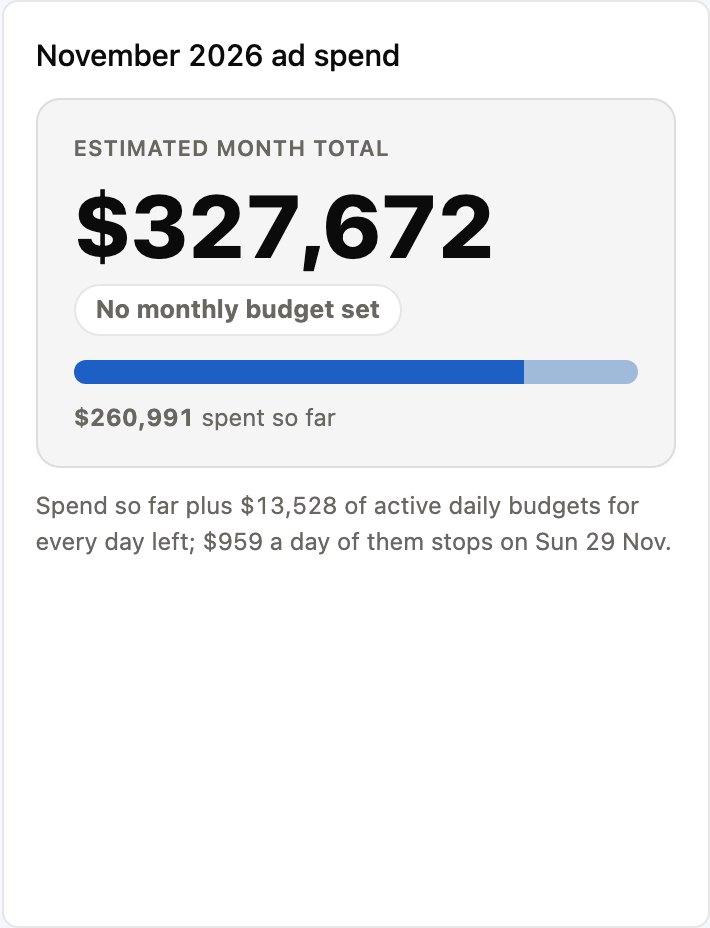
Open Overview. The card is called after the month, for example November 2026 ad spend, and sits under What a new customer costs you, next to Shopify next to Meta.
What the card shows
- Estimated month total: the big number, where your Meta spend should land by the last day of the month.
- The verdict: with a budget set, it reads "Heading $X over your $Y budget" in red, or "$X under your $Y budget" in green. Without one it says No monthly budget set.
- The bar: the dark part is what you've spent so far, the light part is the rest of the estimate. With a budget set, a line marks the budget, and when you're heading over, the rest of the estimate is marked as over.
- Under the bar: what you've spent so far and, with a budget, what share of the budget the estimate comes to by month end.
- The note at the bottom: the total of active daily budgets the estimate uses and, when some of them stop before the month ends, how much a day stops and on which day.
How the estimate is worked out
Estimated month total = spend so far + the rest of the month.
- Spend so far counts the month's complete days, so today isn't in it.
- The rest of the month takes every active daily budget for each day that's left, today included.
- Budgets on campaigns and on ad sets both count. Only active ones count, and excluded campaigns are left out.
- A budget with an end date before the month ends counts only until that date.
- A lifetime budget with an end date is spread evenly over the days until it ends.
It assumes every budget spends in full and nothing is changed, added or paused.
Setting your monthly budget
Two ways, both for team members (owners, admins and members):
- On the card, click Set a budget (or Edit budget once there is one), type the amount and click Save.
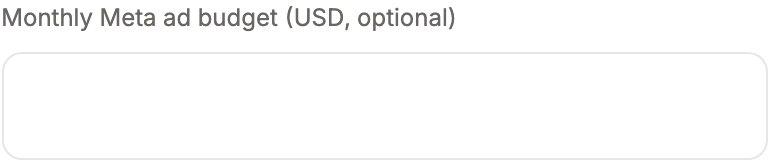
- In Settings, under Targets, fill in Monthly Meta ad budget. It's optional. Leave it empty to remove the budget.
When it becomes an action
Under Do this week, the check Month budget pacing compares the estimate with your budget. When the estimate is more than 2% over the budget, the check is flagged and the action "This month is heading $X over budget" joins the list, with a button to Settings. It comes after the ad actions, and the list holds eight, so in a busy week it can be left off. Without a budget the check just says Set a budget.
What to do with it
- Look at the card around the middle of the month, while there's still time to adjust.
- If it's heading over, check the note: a budget that's about to end may bring it down on its own.
- If it's still over, lower or pause budgets in Ads Manager, starting with the ads that are over target in Ads, Needs action.
Good to know
- The card only appears once the month has some spend.
- Vibe9.co doesn't change your budgets. You make the change in Ads Manager.
- How every number is counted: open How we measure in the app's top bar.