HelpOverview
Cost per new customer: what a new customer costs you on Meta
Where to find it Overview, the first card (What a new customer costs you)
Short answer The first card on Overview, What a new customer costs you, divides what you spent on Meta's new audiences by the purchases they made on 7-day click. It shows that number against your target CPA, with ROAS from new audiences and how much of your spend goes to new and existing customers.
Where to find it
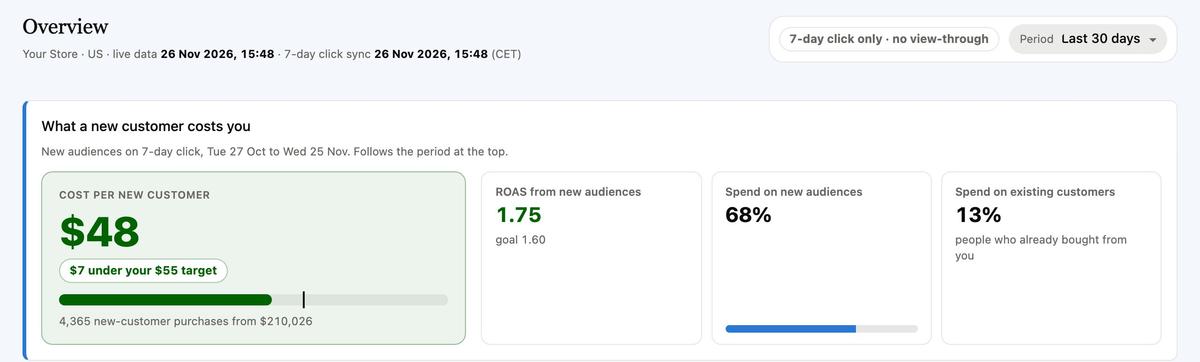
Open Overview in the top bar. The card sits at the top of the page, under the 7-day click only · no view-through pill and the Period select.
How it's counted
- New audiences are Meta's own audience segment for people outside your engaged audience and existing customer lists. You set those lists in Ads Manager, under Advertising settings, Audience segments.
- 7-day click means a purchase counts only when someone clicked an ad and bought within 7 days. Purchases from views without a click are left out, so the numbers are lower than Meta's own.
- Cost per new customer = spend on new audiences ÷ purchases from new audiences, both on 7-day click.
What the card shows
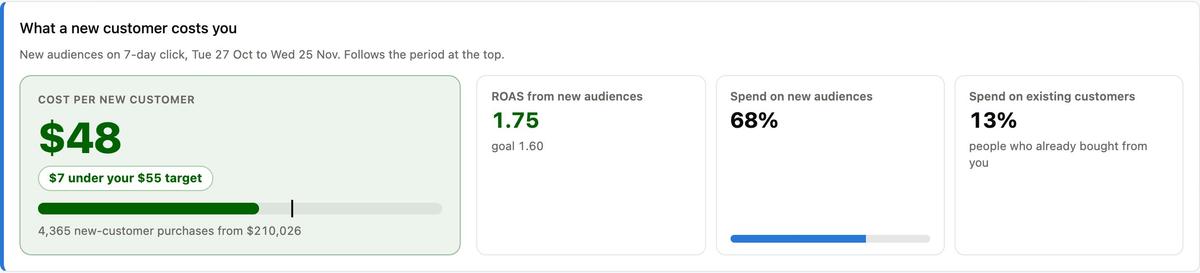
- Cost per new customer: the big number. Under it you'll see how far it is from your target, for example "$7 under your $55 target", "$12 over your $55 target" or "On your $55 target". It's green at or under the target and red over it. The cost is rounded to whole money before it's compared.
- The bar: the filled part is your cost per new customer, and the short line across it is your target.
- The line under the bar: how many new-customer purchases there were and what you spent on new audiences to get them.
- ROAS from new audiences: the revenue Meta reports for those purchases on 7-day click, divided by the spend on new audiences. Under it is your goal. It's green at or above the goal and red below it.
- Spend on new audiences: the share of all your spend that went to new audiences.
- Spend on existing customers: the share of all your spend that went to people who already bought from you.
The two shares are taken from all your spend, including spend Meta couldn't put in any segment, so they don't have to add up to 100%.
The period
The card follows the Period at the top of the page. It's Last 30 days by default. You can also pick Last 7 days, Last 14 days, This month, Last month, Last 90 days or Lifetime. Last 7 days means the last 7 days that have synced. Last 14 days, Last 30 days, This month, Last month and Last 90 days are calendar periods in the account's time zone, and Lifetime covers every day that has synced. The note under the card's title shows the exact days.
What to do with it
- Open Overview and read the big number first.
- If it's red, open Ads, then Needs action, to see which ads push it up.
- If spend on existing customers is high, check whether your new-customer campaigns are reaching people who already bought.
- If it's well under target, look at the Scale ads in Needs action before you add budget anywhere else.
Good to know
- Your target is the CPA target in Settings, under Targets. The ROAS goal is the ROAS target, 7-day click on the same page.
- If Meta returns no audience segments for the account, the card says so instead of showing a number. Set the segments up in Ads Manager (Advertising settings, Audience segments) and they appear from the next sync.
- The Shopify next to Meta card under it puts your Meta spend against your store's own first orders, when a Shopify store is connected.
- How every number is counted: open How we measure in the app's top bar.