HelpTeam and sharing
Share links: a read-only dashboard for your client, no sign-in needed
Where to find it The Share button above the dashboard, then Share links
Short answer Click Share above the dashboard, pick when the link expires and click Create link. Anyone with the link sees that dashboard's Overview, Ads, Charts and Insights, read-only, without signing in. Copy the link straight away: it's shown only once. Revoke stops it working at any time.
Where to find it
Open the dashboard and click Share above it. The Owner, Admins and Members see the button. Client viewers don't.
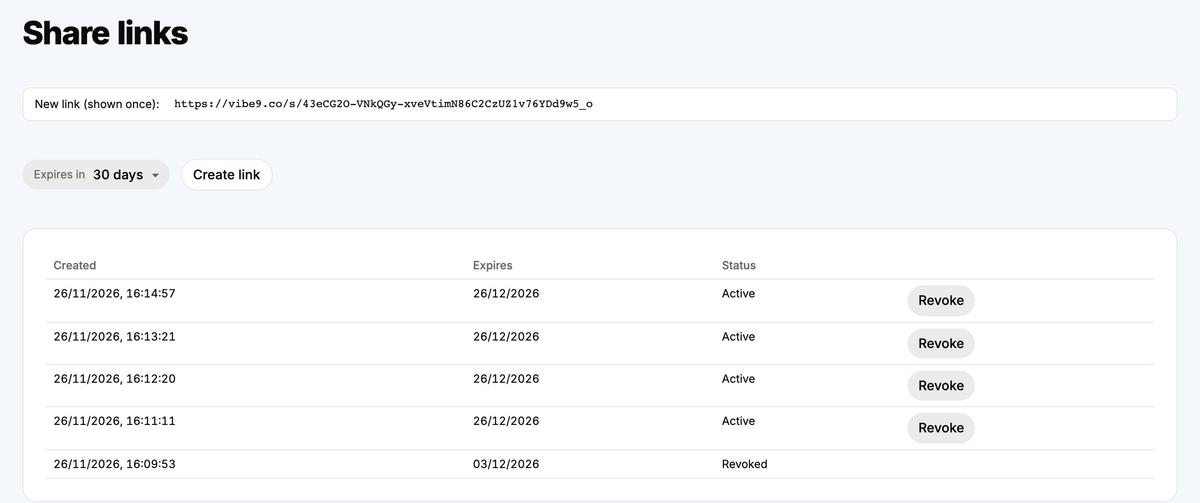
Create a link
- Pick Expires in: 7 days, 30 days (the default), 90 days or Never.
- Click Create link.
- Copy the link from New link (shown once) and send it to your client.
The link is shown only this once. Vibe9.co keeps only a scrambled copy (a hash) of it, so it can't show it again. If it's lost, create a new link and revoke the old one.
Each link opens one dashboard. To share two stores, create a link on each dashboard.
What your client sees
The shared view has its own top bar: Shared view · read-only, the four sections and the dashboard's name.
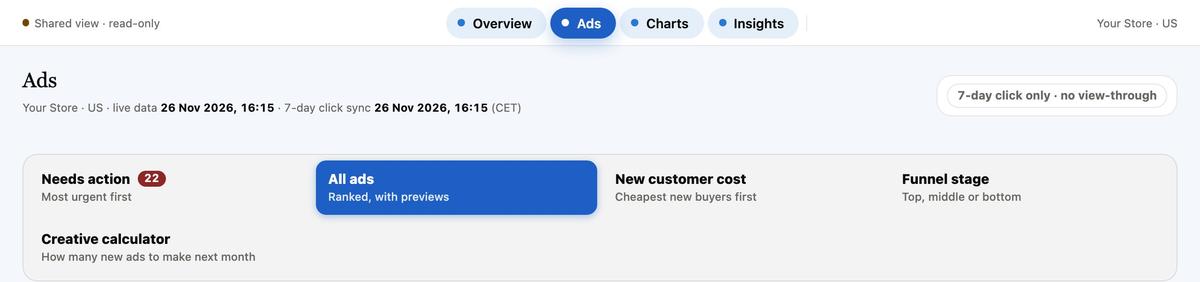
- Overview, Ads, Charts and Insights, with the same numbers your team sees.
- Under Ads: Needs action, All ads, New customer cost, Funnel stage and the Creative calculator.
What stays hidden or switched off:
- The Creative reports, Spend rules, Launches and Customer voice tiles under Ads. They're for your team.
- Settings, Sources, Team and Billing, the Share button itself, and the links that lead into Settings.
- Anything that changes the dashboard: refreshing data from Meta, Generate insights, deleting a saved version, adding team notes.
- Saved insights marked Numbers not verified.
- Sample data. A share link always shows the dashboard's real numbers.
Shared pages ask search engines not to index them. Still, anyone who has the link can see the numbers, so send it only to people who should.
Every link and its status
The table lists every link made on this dashboard, newest first: when it was Created, when it Expires (or "never") and its Status:
- Active: it works.
- Expired: its time ran out. It no longer opens.
- Revoked: someone clicked Revoke. It no longer opens.
Revoke a link
Click Revoke next to an active link. From then on the link opens nothing. Revoking can't be undone: to share again, create a new link.
A link also stops working when its dashboard is archived.
Good practice
- One link per client, so you can revoke one without affecting the others.
- Pick 30 or 90 days rather than Never, and send a fresh link when it runs out.
- When a client relationship ends, revoke their link the same day.
- For a client who should sign in, or see several dashboards, invite them as a Client viewer instead (see Team and invites).
Good to know
- Who can create and revoke links: the Owner, Admins and Members.