HelpTeam and sharing
Team and invites: who can see your dashboards, and what they can do
Where to find it Team, in the top bar (Owner and Admins)
Short answer Open Team, type an email, pick a role (Admin, Member or Client viewer) and click Send invite. Admins and Members see every dashboard in the workspace. Client viewers see only the dashboards you tick, and can't change settings or generate insights. Invites wait under Pending invites until they're accepted.
Where to find it
Click Team in the top bar. Only the Owner and Admins see it.
The roles
| Owner | Admin | Member | Client viewer | |
|---|---|---|---|---|
| Dashboards | All | All | All | Only the ones you tick |
| Reports (Overview, Ads, Charts, Insights) | Yes | Yes | Yes | Yes |
| Settings, new dashboards, share links, Generate insights | Yes | Yes | Yes | No |
| Alerts, Budget insurance, archive a dashboard | Yes | Yes | No | No |
| Team: invite, change roles, remove | Yes | Yes | No | No |
| Billing | Yes | No | No | No |
A few details:
- Members can open Connections and connect Meta. Removing a connection, and linking or disconnecting Shopify, are for the Owner and Admins.
- Client viewers don't see Connections, Team, Billing, Settings or the Share button. They can't add team notes to the charts either.
- In a store workspace (not an agency), you can invite client viewers only.
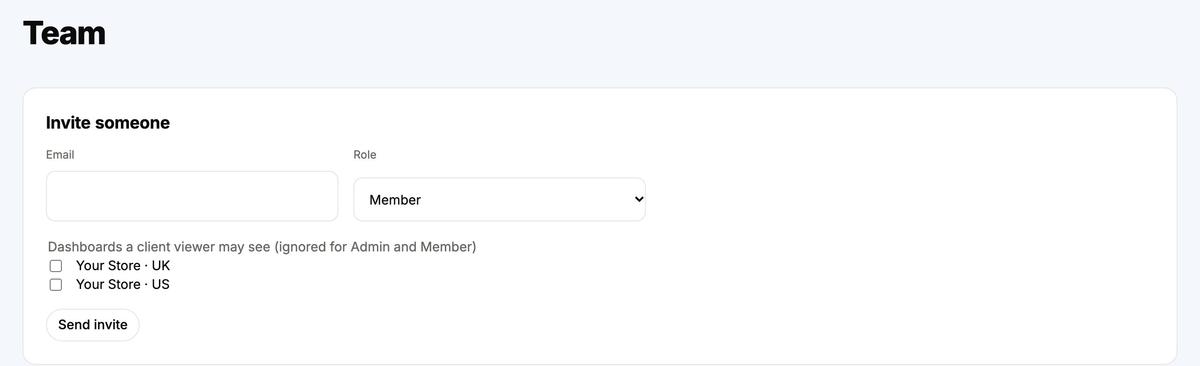
Invite someone
- Type their Email.
- Pick a Role: Admin, Member or Client viewer. An agency workspace starts on Member, a store workspace on Client viewer.
- For a client viewer, tick at least one dashboard under Dashboards a client viewer may see. The ticks are ignored for Admin and Member.
- Click Send invite.
They get an email with a link that works for 7 days. They sign in with the same email address to accept. If they already belong to the workspace, accepting changes their role to the invited one (the Owner's role never changes).
Each person can send up to 20 invites in 24 hours, resends included.
Pending invites
Every invite that hasn't been accepted, revoked or run out shows here, with its role, dashboards and expiry date.

- Resend sends a new link with a new 7-day expiry. The old link stops working.
- Revoke cancels the invite. Its link stops working.
Members
The table lists everyone in the workspace with their role and dashboards.
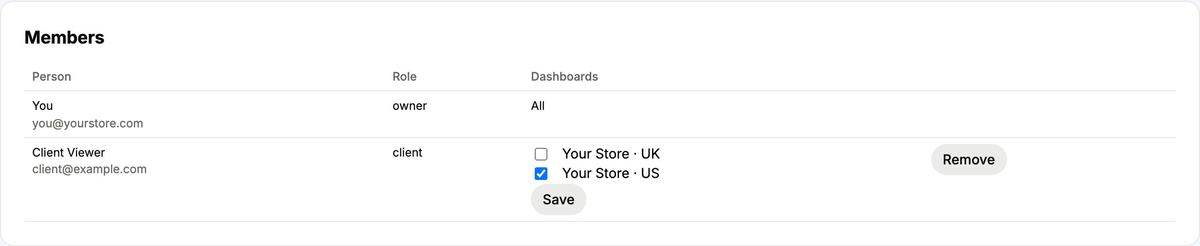
- Change a role: pick Admin or Member next to the person and click Change. The Owner can change Admins and Members. An Admin can change Members only. A client viewer's role isn't changed here.
- Change what a client viewer sees: tick or untick their dashboards and click Save.
- Remove: takes the person out of the workspace and off every dashboard. The Owner can remove anyone but themselves. An Admin can remove Members and client viewers, not other Admins. Nobody can remove the Owner.
Setting up a client
- Invite them as Client viewer and tick their store's dashboard.
- Ask them to sign in with the email you invited.
- Later, add or take away dashboards in Members and click Save.
For someone who shouldn't have an account at all, send a read-only share link instead: see Share links.
Good to know
- The Owner can't be removed, and their role can't be changed.
- Need someone to see a dashboard without an account? Use a share link instead.