HelpAds
All ads: every ad ranked, with its preview and numbers
Where to find it Ads, then All ads (the second tile)
Short answer All ads shows every ad as a card with its preview, ranked by spend unless you choose another order. Each card has the ad's spend, ROAS, CPA, purchases and click rate, coloured against your targets, plus the label from Needs action. Click Details on a card for who the ad reaches and its cost per sale week by week.
Where to find it
Open Ads in the top bar, then click All ads (the second tile, "Ranked, with previews").
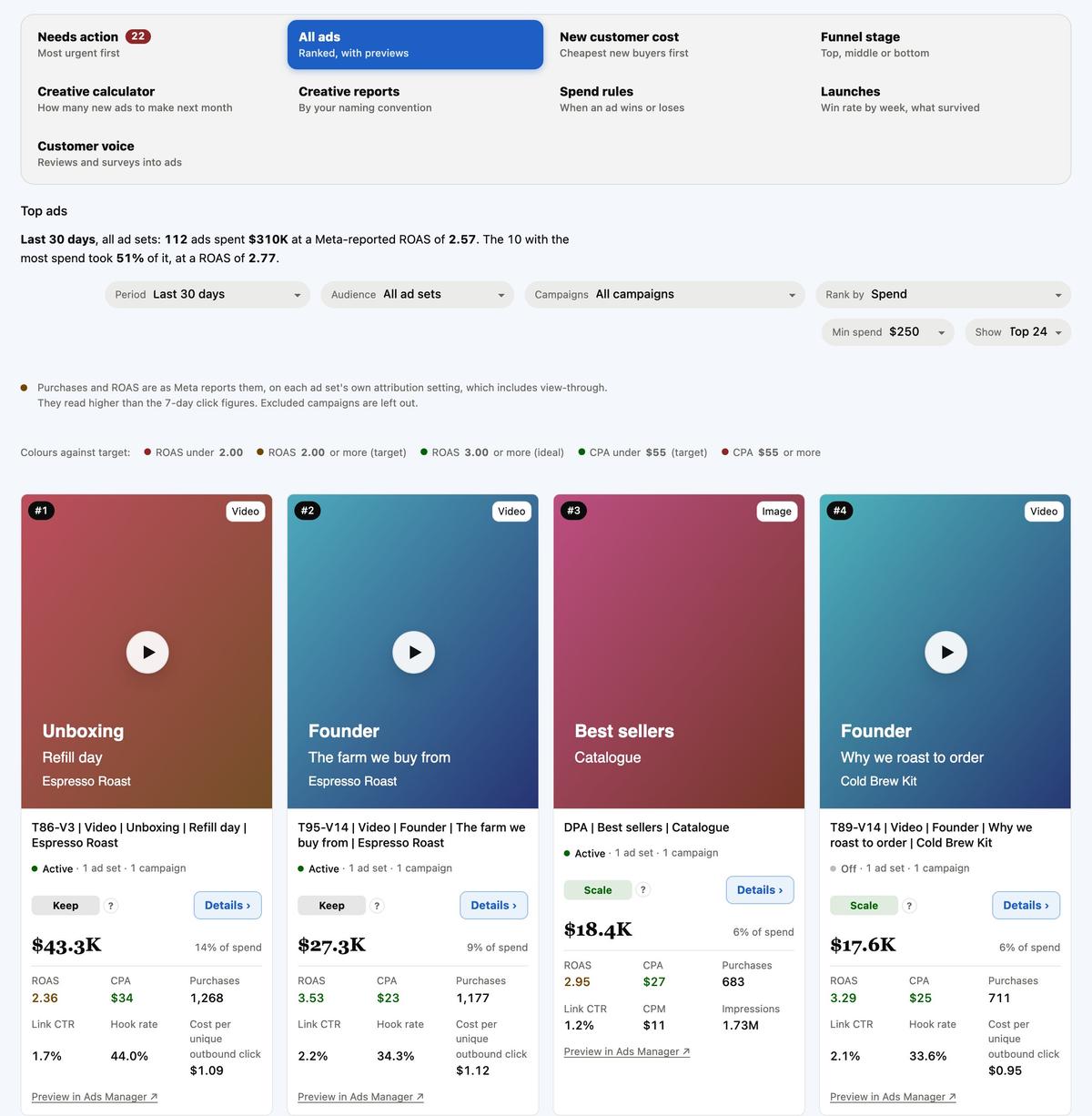
The line under Top ads sums up the view, including the share of spend the 10 biggest ads took.
The selectors
- Period: Last 7 days, Last 14 days, Last 30 days (the default), This month (incl. today), Last month or Lifetime. Lifetime goes as far back as Meta keeps data (37 months).
- Audience: All ad sets, or one audience. An ad set's audience comes from its name, using the audience rules in Settings. Ad sets that match no rule are Other ad sets.
- Campaigns: All campaigns, or one of the campaign scopes saved in Settings.
- Rank by: Spend (the default), ROAS, CPA (lowest first), Purchases, Link CTR, Hook rate or Cost per unique outbound click. Ads with no value for that number go last, and ties are broken by spend.
- Min spend: hides ads that spent less in the period. Any, 250 (the default), 1,000 or 2,500, in your account's currency.
- Show: Top 6, Top 12, Top 24 (the default) or All.
Ads with the same name are combined into one card, across ad sets and campaigns. Excluded campaigns are left out.
What's on a card
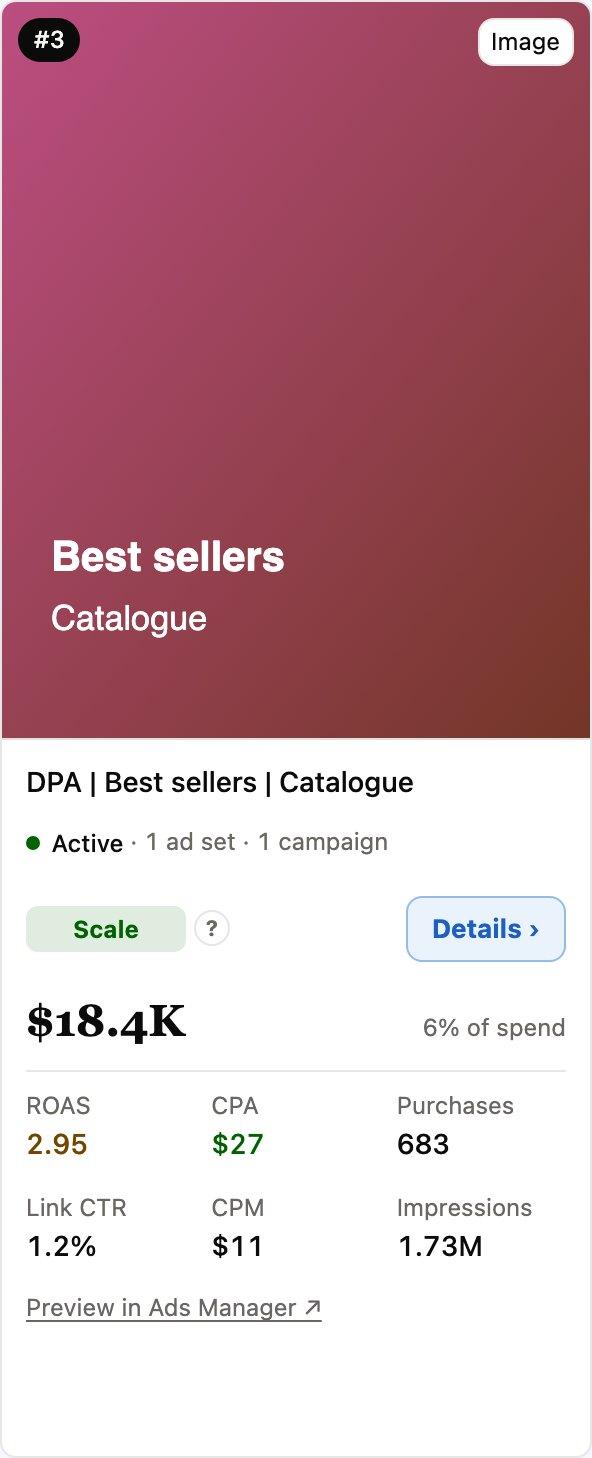
- The preview, with the ad's rank (#1, #2...) and its format, Video or Image. In the app, click a preview to play the ad without leaving Vibe9.co, as it shows in the Facebook feed, Instagram feed, Instagram Reels or Facebook Reels. Meta only shows previews to people signed in to Facebook with access to the ad account. If it's blank, use Open in Ads Manager under the player. On a client share link, the preview opens Ads Manager instead.
- The name and delivery: Active, Off, or "Active (1 of 2 ads)" when only some ads with that name are delivering.
- The label: what to do with the ad this week (Keep, Scale, Fatigued, Over target and so on). It's the same label and rule as in Needs action. Click the ? to see why.
- Spend, and its share of all the spend in the view.
- The numbers: ROAS, CPA and Purchases on every card. Video ads add Link CTR, Hook rate and Cost per unique outbound click. Image ads add Link CTR, CPM and Impressions. Hook rate is the share of impressions that played at least 3 seconds. A ≈ in front means it's an estimate, worked out from Meta's cost per 3-second play, which Meta rounds to the cent.
- Preview in Ads Manager opens the ad in Meta. When several ads share the name, it opens the one with the most spend.
The colours
The key above the cards uses your targets from Settings:
- ROAS: red under your ROAS target, amber at or above the target, green at or above your ideal ROAS.
- CPA: green under your target CPA, red at or above it.
Meta's numbers, not 7-day click
Purchases, ROAS and CPA on the cards are as Meta reports them, on each ad set's own attribution setting, which includes view-through. They read higher than the 7-day click figures. The label and the detail panel use 7-day click.
The table under the cards
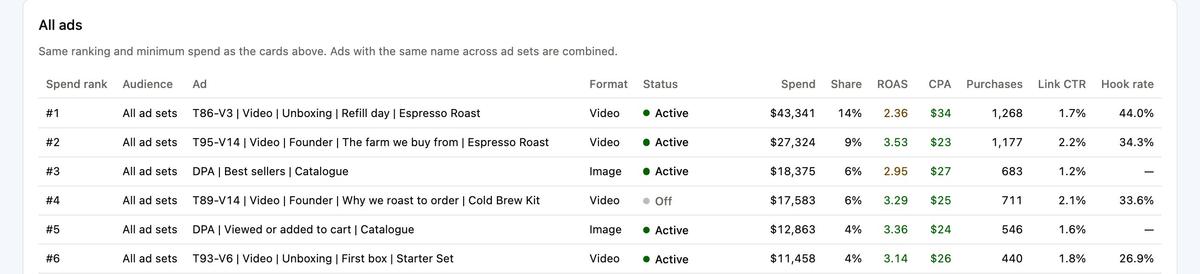
Below the cards, the All ads table lists the same ads with the same ranking and minimum spend, but not the Show limit. It adds an Audience column and shows every number for every ad, video or image, up to CPM and the number of ad sets.
The ad detail panel
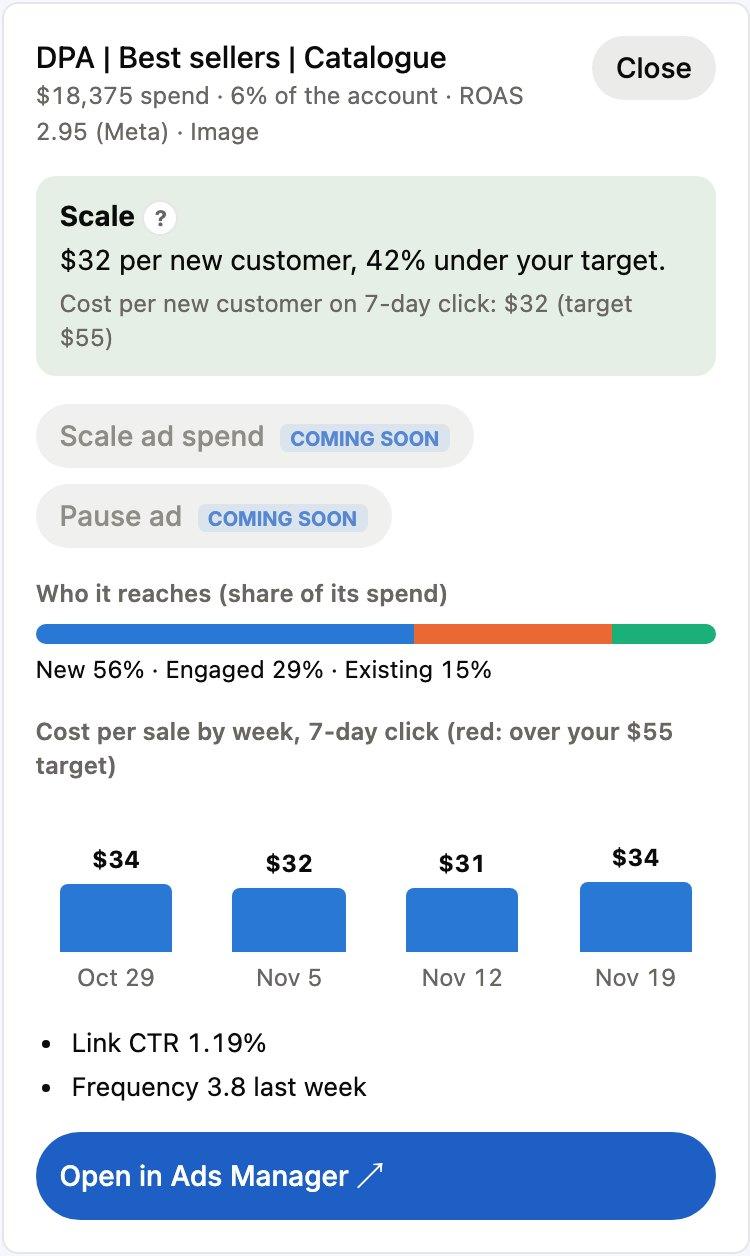
Click Details on a card. The panel opens next to the list:
- What to do and why, with the ? for the full rule, and the cost per new customer on 7-day click next to your target.
- Who it reaches (share of its spend): New, Engaged and Existing, as Meta splits its audience into new people, people who engaged with you and existing customers.
- Cost per sale by week, 7-day click: the last four weeks. Bars over your target CPA turn red. "no sale" means it bought nothing that week.
- The signals: if the ad is wearing out, its fatigue numbers before and now. Otherwise its link CTR, hook rate and last week's frequency.
- Open in Ads Manager takes you to the ad.
What to do with it
- Keep Rank by on Spend to see which ads carry your budget.
- Switch Rank by to CPA, lowest first or ROAS and raise Min spend, to find the efficient ads with real spend behind them.
- Open Details on your biggest ads. One that mostly reaches existing customers isn't finding new ones.
- Act on the labels in Needs action.
Good to know
- Vibe9.co doesn't change anything in your ad account. You make the change in Ads Manager.
- The colours use ROAS target for creative colours, ROAS ideal and CPA target in Settings, under Targets. Change them and the colours follow.
- How every number is counted: open How we measure in the app's top bar.