HelpAds
Creative reports: which angles, formats and personas win
Where to find it Ads, then Creative reports (the sixth tile)
Short answer Creative reports group your creatives by any field of your naming convention, such as angle, persona or format, and show how many were tested, how many won and what a purchase cost. Make more and Make less point out the values that win far more or far less often than your account does.
Where to find it
Open Ads in the top bar, then click Creative reports ("By your naming convention"). It's for your team only: client share links don't show this tile.
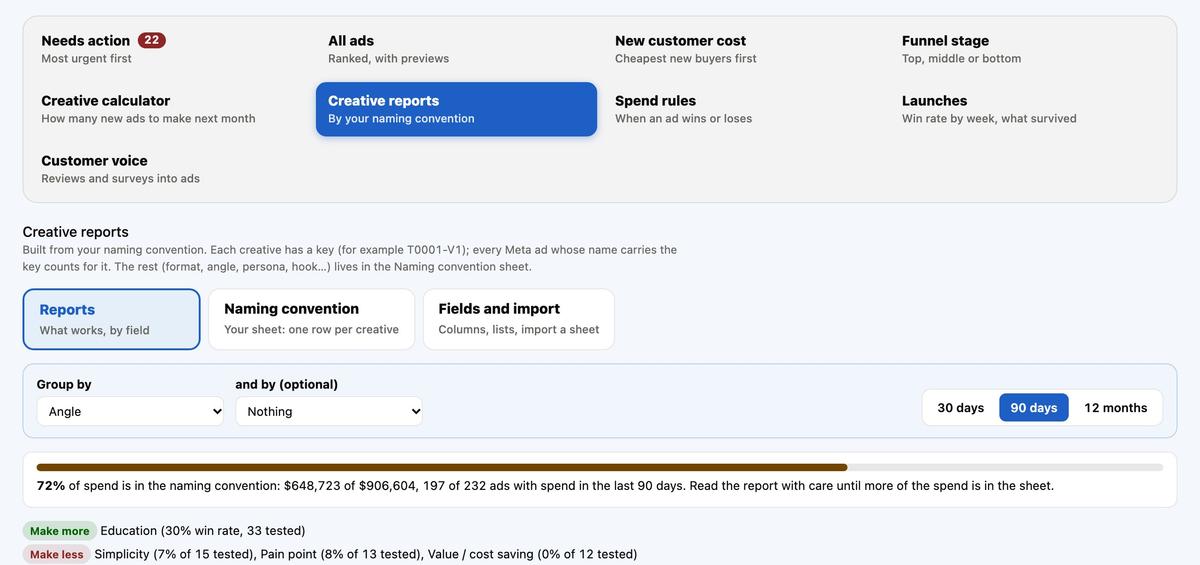
It has three tabs: Reports (what works, by field), Naming convention (your sheet, one row per creative) and Fields and import (the columns, their lists, and importing a sheet you already have).
How ads are matched to creatives
Every creative has a key: letters, a concept number and a variant, for example T0001-V1. A Meta ad counts for a creative when its name carries that key. Case, separators and leading zeros don't matter, so T0001-V1 and t0001_v1 both match. All the ads with the same key add up to one creative. An ad can also be linked to a key by its ad id, so its name in Meta can stay as it is.
Everything else (format, angle, persona, hook...) lives in the Naming convention sheet.
The report
Group by picks the field: Concept name or any column of your naming convention (Angle by default). The period buttons pick 30 days, 90 days (the default) or 12 months, up to yesterday. Numbers are on 7-day click, and excluded campaigns are left out.
How much of your spend it can see
The bar under the controls shows the share of your spend whose ads carry a key. Between 50% and 80% it asks you to read the report with care. Under half, it warns that the report may not show how the account really works: add your biggest ads to the sheet first.
The table
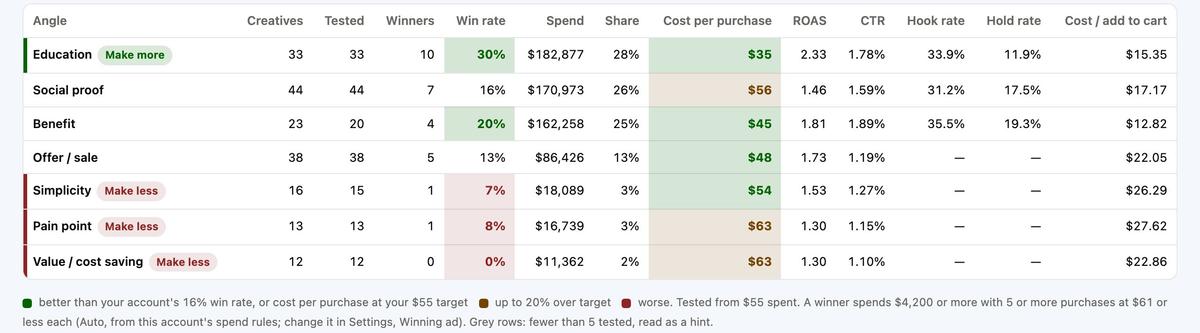
One row per value, biggest spend first. Creatives with no value sit last as "(not set)".
- Creatives, Tested and Winners: how many creatives have that value, how many got a real test and how many won.
- Win rate: winners ÷ tested. Green when it's a quarter or more above your account's win rate, red when it's a quarter or more below (with at least 3 tested).
- Spend and Share of the spend in the report.
- Cost per purchase: spend ÷ 7-day click purchases. Green at or under your target CPA, amber up to 20% over, red beyond that.
- ROAS, CTR, Hook rate (3-second plays ÷ impressions of video ads), Hold rate (ThruPlays ÷ 3-second plays) and Cost / add to cart.
Grey rows have fewer than 5 tested creatives: read them as a hint, not a result.
Make more and Make less
Your account's win rate is the winners among all the tagged creatives that got a real test.
- Make more: at least 5 tested, at least 2 winners, and a win rate one and a half times your account's or better.
- Make less: at least 8 tested, and half your account's win rate or less.
The Creative calculator uses the same report to split next month's new ads, and leaves Make less values out.
Two fields at once
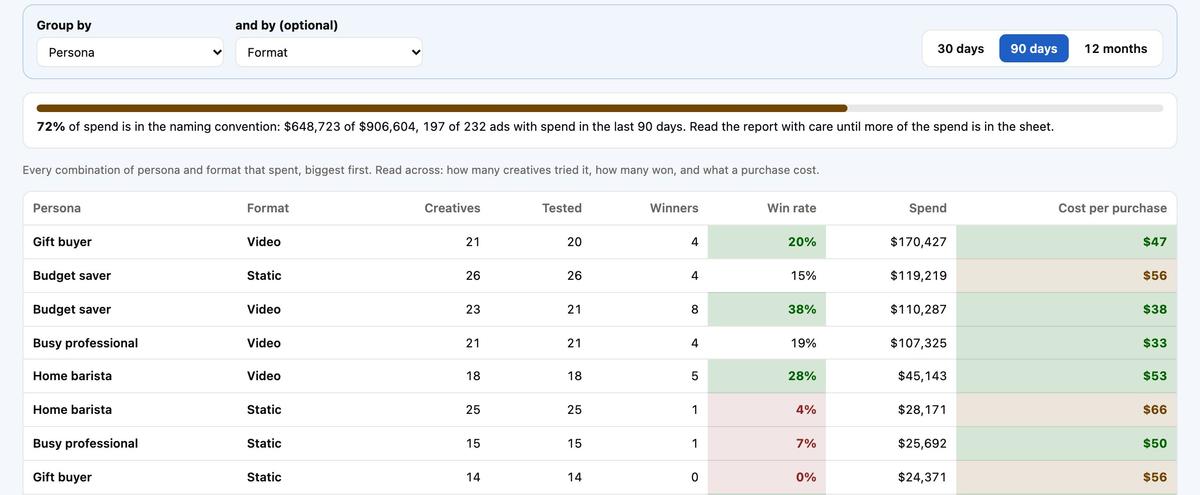
Pick a second field in and by (optional), for example Persona and Format. The table then lists every combination that spent, biggest first, 25 at a time.
What counts as a winner
A winner is an ad that reached scaling spend at or near your target cost per purchase, so it carries budget, not just a few lucky sales. Vibe9.co uses one rule for the Creative calculator, Creative reports, Spend rules and Launches:
- Tested: it has spent at least the Tested from amount.
- Winner: it's tested, it has spent at least the Scaling spend, it has at least the Minimum purchases, and each purchase cost no more than your target CPA plus the Over target allowed percentage.
Set each part in Settings, under Winning ad. Leave a field blank to use Auto:
- Tested from: where the account's Spend rules say an ad can be judged, once they're learned with confidence. Until then, two times your target CPA.
- Scaling spend: the lowest winner level the Spend rules learned from your account's ads that held target. Until then, ten times your target CPA. It's never lower than Tested from.
- Over target allowed: 10%.
- Minimum purchases: 5.
Preview the count in that card shows how many creatives would win under the rule before you save.
In Creative reports, each creative is judged on everything its ads spent and bought in the period you picked. The line under the table repeats the rule in use.
The naming convention sheet
One row per creative: its key, name, a column for each field, the Meta ad name to copy into Ads Manager, and how its ads did, ending in a result: Winner, Not a winner, Testing or No spend yet. Team members who can edit the dashboard add rows with + New row.
Meta ads not in the sheet lists ads with spend but no key. Add one as a new row, or type the key of the row it belongs to and click Link.
Fields and import sets the columns (a list with fixed choices, or free text), the key letters for new rows, imports a CSV or XLSX sheet you already have (rows whose key is already in the sheet are updated) and downloads the sheet or an empty template as CSV.
A routine before you brief
- Check the coverage bar. If it's under half, tag your biggest ads first.
- Group by Angle, Persona and Format on 90 days, then try pairs with and by.
- Brief more of the Make more values and stop the Make less ones.
Good to know
- Vibe9.co doesn't change anything in your ad account. Keys only need to be in the ad names, or linked in the sheet.
- How every number is counted: open How we measure in the app's top bar.